Building Stao: A Standing Desk Companion That Actually Works
I bought a standing desk two years ago. Wanna know how much I actually stood? Maybe 15-20 minutes a day. On a good day.
Not because I didn’t want to. I just forgot. Every single day.
Tried phone alarms—too annoying, started ignoring them. Tried sticky notes—worked for 2 days. Tried “I’ll just remember”—that was never going to work.
The Hardware Rabbit Hole
Before writing any code, I researched what was already out there. The high-end standing desk market has some impressive solutions. Desks from Fully, Uplift, and others offer programmable presets, mobile apps, and even APIs for integration. Some can automatically raise and lower on a schedule.
For those of us with basic desks, retrofit options exist. The Ergo Driven Tempo replaces your desk’s control box and adds smart features—scheduled position changes, usage tracking, integration with calendar apps. It’s a clever solution that turns a dumb desk into a smart one.
There was just one problem: my desk is a basic budget model. It has up, down, and three height presets—but no compatible connectors for smart upgrades. The presets make switching positions easy; I just need something to remind me to actually do it.
The Software Problem
So I looked at apps instead. The existing options didn’t fit.
Some require accounts and monthly subscriptions to do something my phone’s built-in timer could handle. Others blast full-screen alerts that interrupt video calls or break my concentration during debugging sessions. A few store usage data on remote servers for reasons never explained.
Most critically, none of them did what I actually needed: track how much time I spent sitting versus standing, let me customize the intervals, remind me to move around periodically, and work across all my devices. I switch between my phone, my Linux desktop, and my MacBook laptop throughout the day. An iOS-only app wasn’t going to cut it.
None of them let me just set a timer and forget about it.
What I Actually Needed
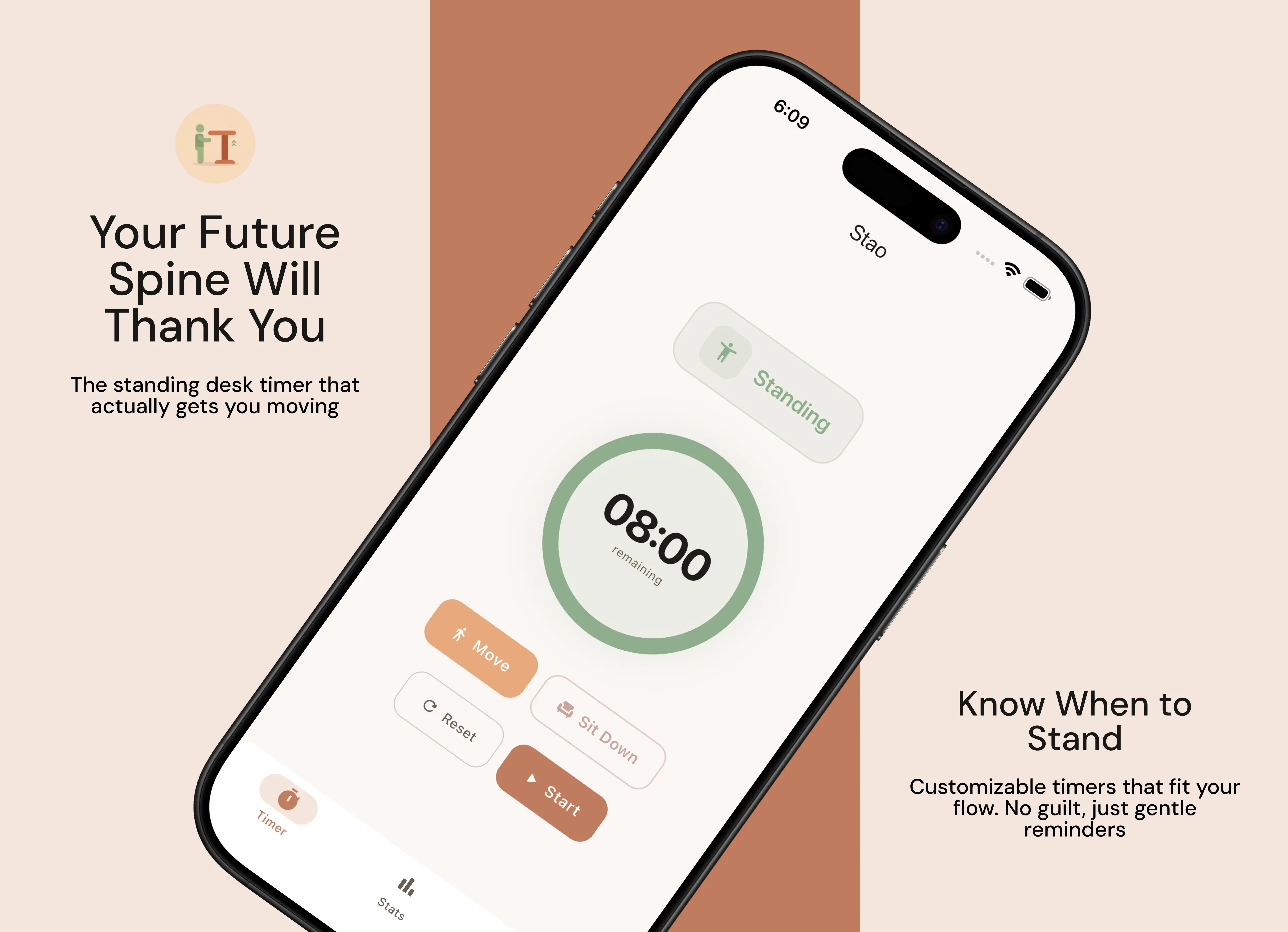
The requirements were simple. A timer that alternates between sitting and standing intervals. Notifications that don’t hijack my screen. Statistics to track whether I’m actually using my standing desk or just feeling guilty about not using it. Everything running locally without accounts or cloud dependencies. And most importantly, an app that works the same way on my MacBook laptop, my Linux desktop, and my phone.
I named it Stao—a play on the Norwegian word for “stand.” For the other Norwegians out there: “stao no på!” The goal was to build something so minimal that I’d actually use it.

Why Flutter
Cross-platform development has a reputation problem. The promise of “write once, run everywhere” usually translates to “write once, debug everywhere with platform-specific workarounds.” But the alternative—maintaining separate codebases for six platforms—wasn’t realistic for a side project.
Flutter has matured significantly. The desktop support that was experimental three years ago now handles window management, system tray integration, and platform channels reliably. More importantly, the widget system maps well to a timer application where the core interface is a circle with numbers in it.
State management uses Riverpod, which provides the dependency injection needed for clean separation between the timer logic, persistence layer, and UI. The reactive model means the timer updates flow automatically to every widget that cares about them without manual subscription management.
Local storage relies on Hive for session data and SharedPreferences for settings. Both work identically across platforms without the SQLite complexity that desktop apps sometimes require.
The Timer Problem
A countdown timer sounds trivial until you consider what happens when the app goes to the background.
On mobile platforms, apps don’t get guaranteed execution time when not visible. iOS suspends background processes aggressively to preserve battery life. Android varies by manufacturer, with some devices killing background apps within seconds of switching away. A naive timer implementation using periodic callbacks simply stops working the moment you check your email.
The solution differs by platform. Android uses a foreground service—a special process type that tells the system “this app is doing something the user cares about, don’t kill it.” The service displays a persistent notification showing the timer state, and the notification itself includes buttons for pause, resume, and switching between sitting and standing modes.
iOS takes a different approach with Live Activities. Instead of a background service, the timer state lives in a widget that appears on the lock screen and Dynamic Island. The widget handles its own countdown, and the app communicates state changes when the user interacts with it.
Desktop platforms don’t have these restrictions. The timer runs normally, but users expect the app to minimize to the system tray rather than cluttering the taskbar. Implementing tray support required platform-specific icon handling—macOS needs template images for dark mode compatibility, Windows expects .ico files, and Linux depends on libappindicator libraries that may or may not be installed.
Surviving App Termination
Users close apps unexpectedly. They force-quit from the task switcher. They restart their phones. The timer needs to survive all of this.
Timer persistence saves state whenever the timer is running: current mode, elapsed time, start timestamp, and pause duration. When the app launches, it checks for persisted state and calculates what the timer should show based on how much real time has passed since the last save.
The calculation matters more than it might seem. If I paused the timer at 5:00 remaining, closed the app, and reopened it two hours later, it should still show 5:00. But if the timer was running at 5:00 when I closed the app, it should show the current time accounting for those two hours—possibly negative if I’ve blown past my target.
This negative time display was a deliberate design choice. Most timer apps stop at zero and either auto-switch modes or require manual intervention. Stao continues counting into overtime, showing -2:30 to indicate you’ve exceeded your sitting target by two and a half minutes. This gives users feedback about their actual behavior rather than pretending they hit their goal.
Notifications Without Interruption
The notification system needed to balance visibility with respect for focus time.
Platform notification APIs vary wildly. Android requires explicit channel creation with importance levels that determine whether notifications make sound, vibrate, or show silently. iOS needs permission requests and handles notification actions through a delegate pattern. Desktop Linux uses D-Bus, which means the notification behavior depends entirely on the desktop environment’s notification daemon.
I settled on non-intrusive notifications that appear briefly and don’t require immediate action. The notification tells you it’s time to switch positions, but it doesn’t force you to acknowledge it. If you’re in the middle of something, you can finish and switch when ready.
Work hours scheduling added another layer. Users can define which days and hours they want reminders active. Running the timer outside configured work hours triggers a gentle reminder that you’re past your scheduled day, but doesn’t prevent continued use. Some people work late; the app shouldn’t judge.
Building Statistics That Matter
Session tracking records every sitting, standing, and movement period with start time, duration, and completion status. “Completion status” matters because users don’t always finish their intended duration—they might switch early or close the app entirely.
The statistics screen shows daily summaries with sitting and standing time, weekly charts comparing activity across days, and streak tracking for consecutive days of active use. Weekly averages help identify patterns: maybe you stand more on Mondays when meetings are light, or skip the standing desk entirely on Fridays.
Calculating streaks required defining what counts as an “active” day. I settled on any day with at least one completed session of either type. This means opening the app and immediately closing it doesn’t count, but even a short standing session does.
Internationalization From Day One
Adding translations after an app is built means hunting through code for hardcoded strings and hoping you find them all. Starting with internationalization in mind means every user-facing string goes through the localization system from the beginning.
Flutter’s ARB format makes this straightforward. Each language gets a JSON-like file mapping keys to translated strings, with support for pluralization and parameter substitution. The build system generates type-safe accessor methods, so using a non-existent translation key fails at compile time rather than showing users a missing string.
Stao currently supports English, German, French, Spanish, Japanese, and Norwegian. Adding new languages requires translating a single file without touching any Dart code.
Platform-Specific Lessons
Each platform taught something about user expectations.
macOS users expect window close to minimize to tray, not quit the application. Implementing this required intercepting the close event and hiding the window instead, with a tray menu option to actually quit.
Windows installation needed both MSIX packages for the Microsoft Store and traditional exe installers for direct distribution. The MSIX tooling handles code signing and update mechanisms, while the exe installer gives users who avoid the store an alternative.
Linux desktop integration varies by distribution. AppImage works everywhere but doesn’t integrate with package managers. Flatpak provides sandboxing but complicates system tray access. The AUR package for Arch users allows updates through pacman—and yes, I’m using Arch btw. Supporting multiple distribution methods means maintaining multiple build configurations.
Android’s aggressive battery optimization kills background services on many devices. Users need guidance on disabling battery optimization for Stao specifically, which varies by manufacturer. Samsung, Xiaomi, and OnePlus all have different settings screens for this.
iOS Live Activities have a maximum duration of eight hours, after which they’re automatically ended by the system. For a standing desk timer with typical 30-minute intervals, this isn’t an issue. But the limitation required explicit handling to avoid orphaned activities that show stale data.
What’s Next
The current version handles the core use case well enough that I use it daily. Future improvements will likely focus on:
Better statistics visualization with longer historical views. The current weekly chart is useful but doesn’t show trends over months.
Widget support for iOS and Android home screens, showing current status without opening the app.
Customizable notification sounds, because the system default gets old after a few hundred repetitions.
The Real Metric
I use 20-8-2: twenty minutes sitting, eight minutes standing, two minutes moving around. Short cycles so you never get stiff. After a month my back feels noticeably better.
The app doesn’t gamify standing or send guilt-inducing notifications about missed goals. It just reminds me that I’ve been sitting for a while, and the standing desk right in front of me goes up with the push of a button. Timer goes off, I stand. Timer goes off, I sit. That’s it.
Sometimes the best productivity tool is the one that gets out of the way.
The app is available at stao.app for all platforms. No accounts required.
If you enjoyed this dev story, you might also like Building Kvile: A Lightweight HTTP Client for .http Files—a similar journey building a desktop app with Tauri and Rust.
Comments
Reply on Bluesky here to join the conversation.